Connect Mailgun to Bouncewise
Connect Mailgun with an account API key created under Account Settings › API keys in the Mailgun dashboard. Domain sending keys only send mail, so they can't read logs or suppressions; on plans with key roles, an Analyst key can't read suppressions either, so use Admin or Support. Bouncewise checks the key against both the US and EU APIs and lists every domain it finds, so you don't choose a region.
- Open the API keys page in Mailgun In the Mailgun dashboard, open Account Settings and go to API keys.
- Create an account key Click Create key. If your plan offers roles, choose Admin or Support. Copy the secret straight away: Mailgun shows it only once.
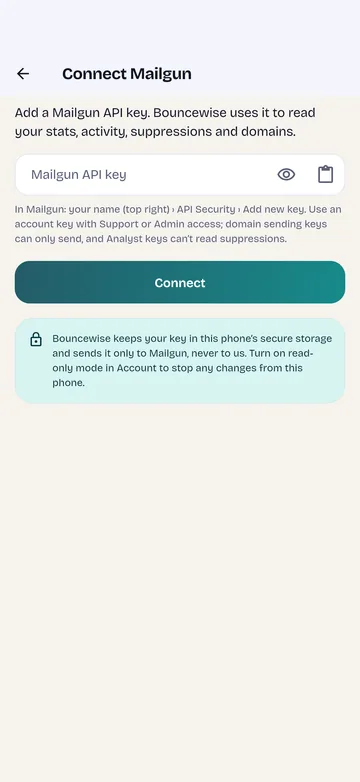
- Paste it into Bouncewise In Bouncewise, choose Mailgun on the Connect screen (or Account › Connections › Add), paste the key into the Mailgun API key field and tap Connect.
- Pick a domain Each Mailgun domain becomes a source. Tap the domain name at the top of Today to switch between them.
Which Mailgun key works
| Key | Works in Bouncewise? | Why |
|---|---|---|
| Account API key, Admin role | Yes | Reads domains, logs, metrics and suppressions; can also remove suppressions and re-check DNS |
| Account API key, Support role | Yes | Read access to most endpoints, with write access to some, including suppressions |
| Account API key, Analyst role | Partly | Read-only, and Mailgun blocks some suppression endpoints for it, so Bounces won't load |
| Domain sending key | No | It can only send through its own domain (/messages), not read anything |
Mailgun offers key roles on Enterprise and some Business plans. On other plans, an account key you create has full access.
US and EU are found for you
Mailgun keeps domains, logs and suppressions in the region where the domain lives, on api.mailgun.net (US) or api.eu.mailgun.net (EU). Bouncewise asks both with your key and remembers each domain's region, so there is no region switch on the Mailgun connect screen. Account › Connections then shows the key as Mailgun account with the number of sources (domains) it found. Live domains are listed before sandbox domains.
What you get from a Mailgun key
- Today: delivered, bounced and spam numbers per domain from Mailgun's metrics.
- Activity: the latest sends from the last 30 days of logs. Search by recipient (an address with
@),tag:name, or words from the subject. - Bounces: Mailgun's three suppression lists for the domain (bounces, complaints, unsubscribes), with the receiving server's reply.
- Domains: DNS records and their status, with Check DNS now.
Mailgun inbound routes aren't shown.
If it won't connect
- That doesn't look like a Mailgun API key. Paste only the key secret, without
api:or spaces. - The key works but there's nothing to show. The account has no sending domains yet.
- Bounces fail with a permission error. The key's role can't read suppressions; create an Admin or Support key.
Questions
Can I use my domain sending key?
No. Mailgun domain sending keys can only send messages through their own domain, so they can't read the logs, metrics or suppressions the app shows.
Do I need separate keys for US and EU domains?
Not in Bouncewise: it tries your key on both the US and EU APIs and lists the domains each returns.
Can Bouncewise send email through Mailgun?
Only test emails you start yourself (Pro), and only after you confirm. Read-only mode hides test sends.
Related
- Mailgun EU region API: US vs EU endpoints and errorsMailgun EU domains use api.eu.mailgun.net, US domains api.mailgun.net. The key works in both, so the wrong host says the domain doesn't exist.
- Mailgun suppressions: bounces, complaints, unsubscribesMailgun drops mail to addresses on a domain's bounces, complaints or unsubscribes list. How to find why an address is there and remove it safely.
- Bouncewise read-only mode: look, never changeRead-only mode hides every action in Bouncewise: reactivate, retry, bypass, remove suppression, DNS checks and test sends. Turn it on in Account › Safety.
- Bouncewise: preview templates, send a test emailPreview your Postmark, Mailgun, SendGrid or Resend templates with sample data and send a test to yourself. Per-provider sender rules and common errors.