Set up bounce, spam and inbound alerts
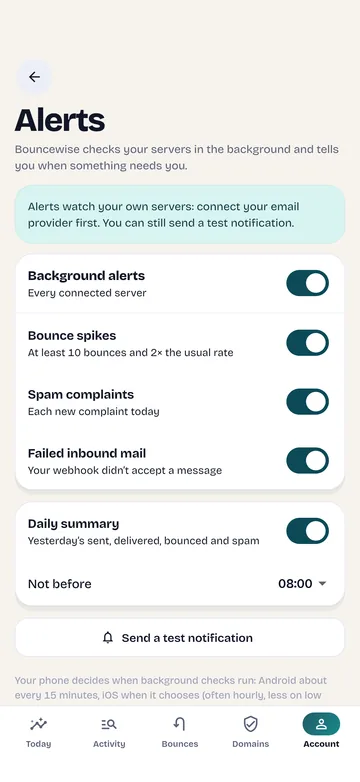
Open Account › Alerts, switch on Background alerts and allow notifications. Bouncewise then checks every connected server in the background and notifies you of bounce spikes, new spam complaints, failed inbound mail and, if you want, a daily summary. The checks run when your phone allows (about every 15 minutes on Android, often hourly on iPhone), so alerts arrive some time after the event, not instantly. Alerts are part of Pro.
- Open Alerts Go to Account › Alerts & widgets › Alerts.
- Switch on Background alerts Turn on Background alerts and allow notifications when asked. If you said no before, turn notifications on for Bouncewise in Settings.
- Choose what to hear about Leave Bounce spikes, Spam complaints and Failed inbound mail on, or turn off the ones you don't need.
- Add the daily summary Turn on Daily summary and choose Not before (06:00 to 12:00) for the earliest time it can arrive.
- Test it Tap Send a test notification to see what an alert looks like on this phone.
What triggers each alert
| Alert | Fires when | Tapping it opens |
|---|---|---|
| Bounce spikes | At least 10 bounces today and at least 2× the usual bounce rate (the previous 7 days, once they had 100 or more sends). Once per server per day. | Bounces |
| Spam complaints | Each new complaint counted today since the last check | Bounces |
| Failed inbound mail | An inbound message your webhook didn't accept that the app hasn't seen before (Postmark inbound) | Activity › inbound |
| Daily summary | Once a day after your chosen hour: yesterday's sent, delivered, bounced and spam | Today |
Tapping an alert also switches the app to the server it's about.
Why alerts aren't instant
Bouncewise has no server of its own watching your account. Each check runs on your phone, calls your provider with the keys already stored there, and posts a local notification for anything new. Android runs the check about every 15 minutes when it can. iOS decides when to run background work: often about hourly, and less on low battery or in Low Power Mode. So a spike at 09:05 may reach you at 09:50. Last check under the settings shows when it last ran and whether any server couldn't be checked. Instant alerts through provider webhooks are planned.
Notes and limits
- Alerts need Pro and a real connection; with sample data you can only send a test notification.
- Turning alerts on later doesn't replay old events: the checks keep track even while alerts are off.
- Failed inbound alerts need inbound processing with a status, which Postmark provides. Mailgun, SendGrid and Resend connections don't produce them.
- If a check shows token refused, the key was revoked or changed: reconnect it in Account.
Questions
Why didn't I get a bounce spike alert?
A spike needs at least 10 bounces today and twice the usual rate, and the usual rate is only measured once the previous 7 days had 100 or more sends. Background checks may also not have run yet.
Will alerts drain my battery?
Each check makes a few API calls and the phone schedules it, so the cost is small; failed checks aren't retried in a loop.
Can I get alerts for only one server?
Alerts cover every connected server. Remove a connection, or turn off an alert type, to hear less.
Related
- Bounce alerts on your phonePhone notifications for bounce spikes, new spam complaints, failed inbound mail and a daily summary from Postmark, Mailgun, SendGrid or Resend.
- Bouncewise widgets: Home Screen and Lock ScreenFour Bouncewise widgets: Delivery, Needs attention, All servers and 7-day trend. How to add them, choose a server with Edit Widget, and how they refresh.
- What is a good email bounce rate? Limits and targetsFor transactional email, keep your bounce rate well under 5%; Postmark requires under 10%. Most bounces should be rare hard bounces, so watch for spikes.
- Postmark inbound failed: why, and how to retry messagesFailed means your inbound webhook didn't return 200 after 10 retries over about 10.5 hours. Fix the endpoint, then PUT /messages/inbound/{id}/retry.