Explore Bouncewise with sample data
Short answer
On the last welcome screen, tap Not ready? Explore with sample data to look around Bouncewise with a made-up company, Acme, before you connect a key. To leave, go to Account › Connections and tap Leave sample data, or connect your own provider, which switches sample data off.
- Start sample data Swipe to the last welcome screen (Connect) and tap Not ready? Explore with sample data.
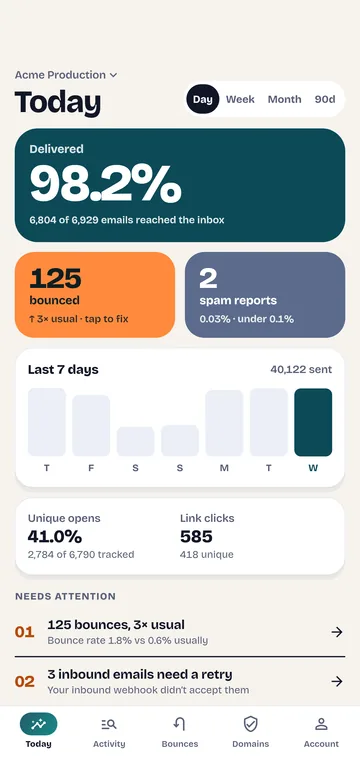
- Look around Every tab works with Acme's data. Today shows a This is a demo card with a Connect button.
- Leave it In Account, under Connections, tap Leave sample data to go back to the welcome screens, or Connect Postmark to use your own account.
What's in the Acme story
Acme runs two Postmark servers, Acme Production and Acme Staging. Today has problems to find:
- A stale import has caused a hard-bounce spike today. Bounces points out that most of them share one domain.
- Three inbound emails failed because Acme's webhook is down.
- A new DKIM key is pending on
mail.acme.dev.
There are also templates to preview, message timelines and HTML previews. Times are relative to now, so the story always looks current.
How it behaves
- Sample data runs the app's real screens against built-in answers. No account is connected and nothing is sent anywhere.
- Pro rules apply, so switching to Acme Staging, 90-day stats or an action opens the Pro screen.
- Alerts can't watch sample data; Account › Alerts can still send a test notification.
- Connecting any provider turns sample data off. If you later remove your last connection, you'll see the welcome screens again.
Questions
Is Acme a real company?
No. Acme and its addresses are made up for the demo.
Can I go back to sample data after connecting?
Remove your connections in Account; the welcome screens come back, with the sample data option.
Related
- Bouncewise Postmark token: server or account tokenConnect Postmark with a Server API token (one server) or an Account API token (every server, plus domains). Where to find each and what it unlocks.
- Bouncewise Mailgun API key: which key to useUse a Mailgun account API key (Admin or Support role), not a domain sending key. Bouncewise finds your US and EU domains with one key.
- Bouncewise Pro: price, free trial, restore purchaseBouncewise Pro is $3.99 a month, $29.99 a year with a 7-day free trial, or $69.99 once. What's included, how to restore a purchase and how to cancel.
- Email bounce checker app: exact server repliesEvery bounce with the receiving server's exact reply, plus suppression lists and reactivation, for Postmark, Mailgun, SendGrid and Resend.